View and form
Discover first the key concepts and logics about Outbound Orders in Hubble.
View Outbound Orders
Order list
Outbound orders can be accessed through the menu Outbound orders > All orders in FLOWS section:
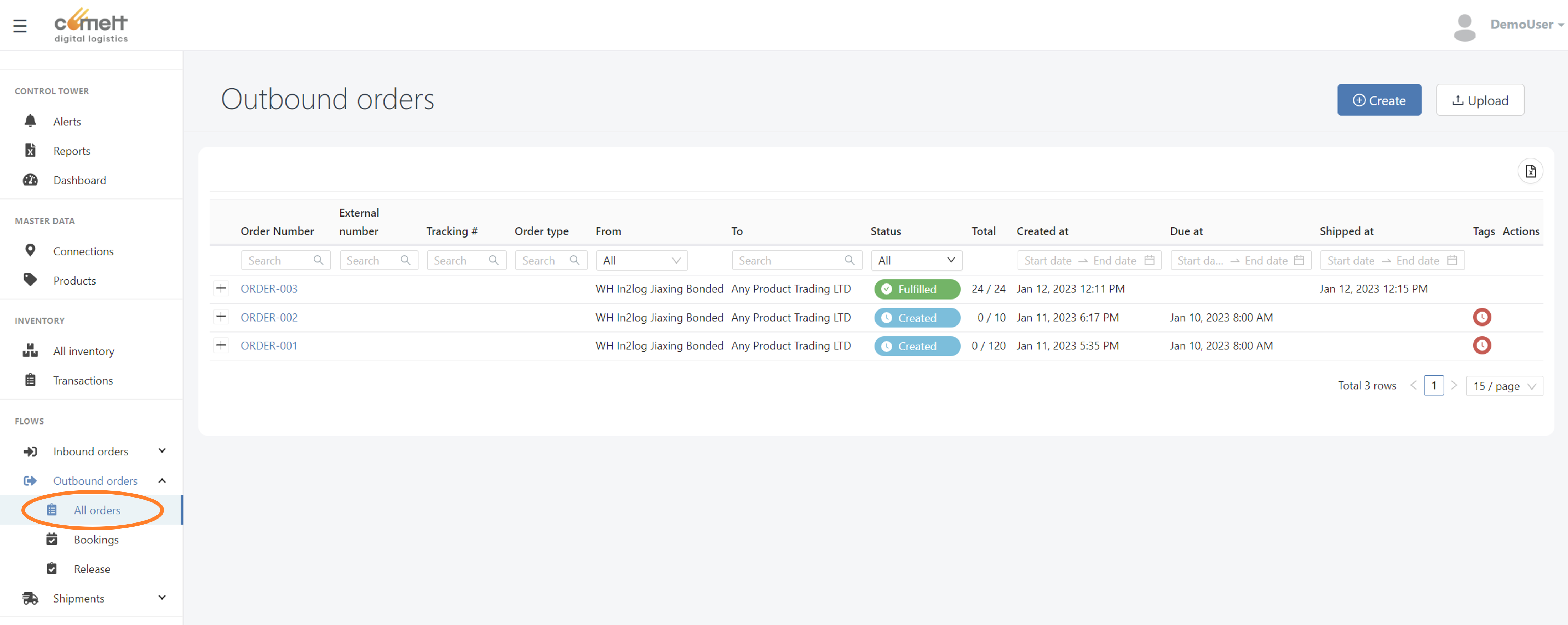
Click on an order number to view order detail.
Outbound order detail
Page Layout
Outbound order page is organized in 2 cards:
- Order header information
- Tabs:
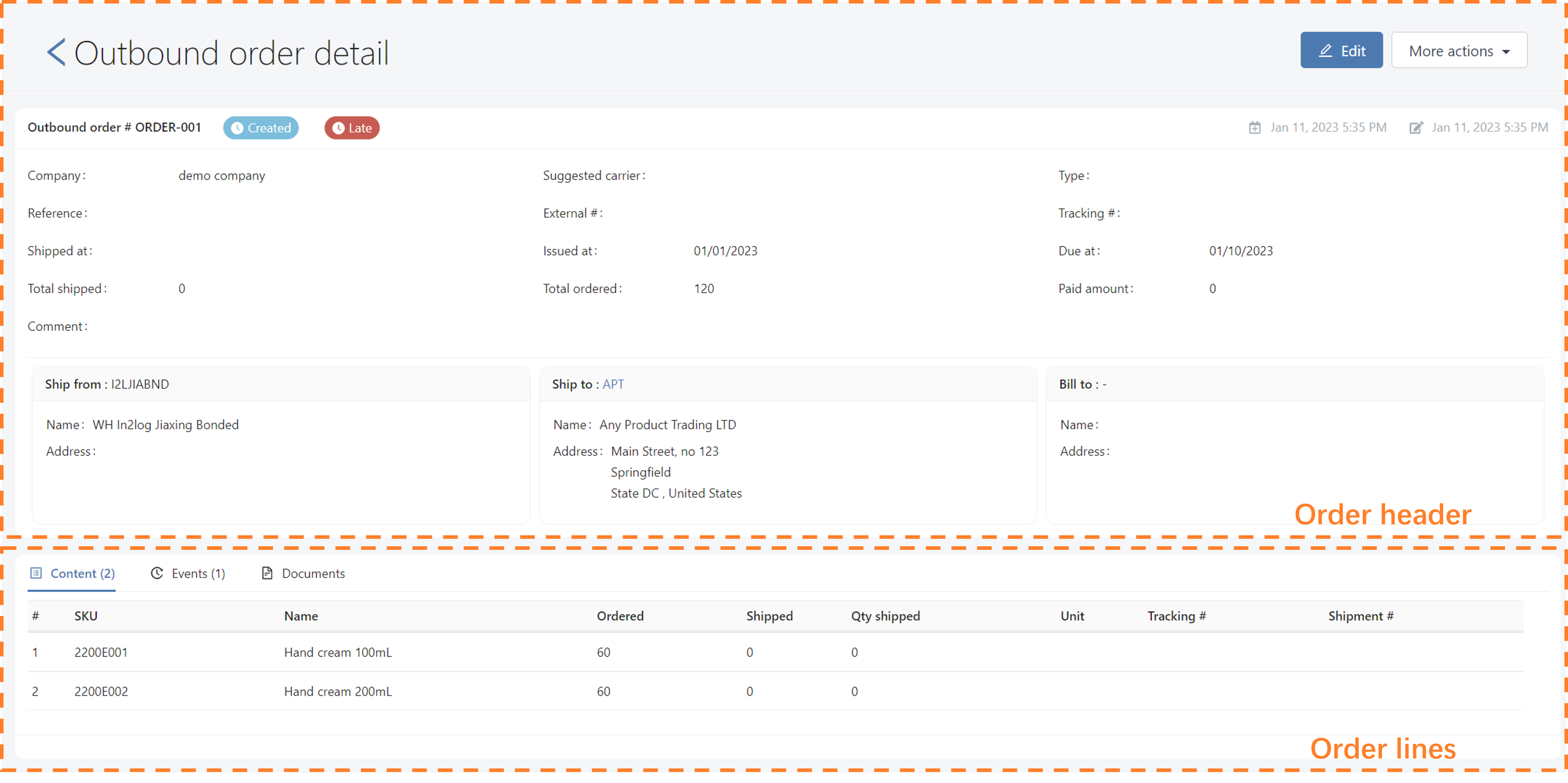
Fields
This page can be controlled with templates. If no custom template is defined, the default template will be used, and additional fields won't be displayed.
In the following fields list, Mandatory, Display Only, or Validation cannot be modified, even with a custom template.
If you need a specific field but it doesn't exists in Hubble standard data model, it is possible to add custom fields, called attributes
Header
Default template
| Field | Definition | Mandatory? | Display only? | Validation ? |
|---|---|---|---|---|
| Outbound order # (in card header) | Main order number. This is number must be unique. | Order number will be auto-generated if not input | Order number cannot be edited | |
| Suggested carrier [1] | Suggested transportation service, either from ERP/OMS/user input, either result of transportation service selection | |||
| Type | Order type, free field to classify your orders ERP order number | |||
| Reference | Secondary number for the order, for example your customer's order number | |||
| External # | 3rd party system identifier, for example | |||
| Tracking # [1] | Suggested tracking number service, either from ERP/OMS/user input, either result of transportation service selection | |||
| Shipped at | Shipment date and time, if the order is Shipped or Partially shipped | Y (Updated at each shipment, even partial) | ||
| Issued at | Date and time when the order has been created in ERP and/or issued by the customer (case when created time in Hubble is not relevant) | |||
| Due at | Date and time when the order is supposed to be fulfilled by warehouse | |||
| Total shipped | Total quantity shipped on this outbound (0 if not shipped) | Y (Calculated by Hubble from as a sum from lines) | ||
| Total ordered | Total quantity ordered on this outbound | Y (Calculated by Hubble from as a sum from lines) | ||
| Paid amount | Total amount paid by the customer for this order | Y (Calculated by Hubble from as a sum from lines) | ||
| Comment | General comment provided by the customer for this order | |||
| Ship from [2] | Shipper of this outbound order (card displaying connection code, name and address) | Y | Connection of any type | |
| Ship to [2] | Consignee of this outbound order (card displaying connection code, name and address) | Y | Connection of any type except Warehouse | |
| Bill to [2] | Entity that should be billed for this order, if different from consignee (card displaying connection code, name and address) | Y | Connection of any type except Warehouse |
Additional fields
| Field | Definition | Mandatory? | Display only? | Validation ? |
|---|---|---|---|---|
| Origin | Which system created the order: API, EDI, ... | Y (Automatically filled by system) | ||
| Paid at | Date and time when the order has been paid by the customer | |||
| Total weight | Total weight of this outbound (Calculated by Hubble from as a sum from lines, but can be modified) | |||
| Entry | 3rd party system identifier, for example | |||
| Incoterm | Order incoterm | INCOTERM [3] | ||
| Currency | Currency used for this order | |||
| Shipper comment | Comment that can be added by the shipper (different from comment, used by customer | |||
| Payment status | Payment status for this order (unpaid, paid, refunded, ...) | Y (Provided by a 3rd party system such as Marketplace, as Hubble doesn't manage payments) | ||
| Refunded at | Refunded date and time | Y (Provided by a 3rd party system such as Marketplace, as Hubble doesn't manage payments) | ||
| Group code | If 1 order needs to be split in Hubble, it is possible to groupe them under the same code through this field | Y (Managed by Hubble specific split logic) | ||
| WMS order # | If Hubble is connected to a WMS, we can record WMS internal ID in this field | Y (Managed by Hubble when synchronizing order with WMS) | ||
| Order version | In case of order modification while the order is in progress, Hubble can manage several versions of one order (see Fulfillment exceptions | Y (Auto-increment by Hubble) | ||
| Tax | VAT amount for t his order | |||
| Transport mode | Main transportation mode for this order (Sea, Road, Express, ...) | TRANSPORTATION_MODE [3] | ||
| Fulfillment delay reason | Reason why fulfillment has been delayed (shipped at > due at) | DELAY_REASON_CODE [3] | ||
| Fulfillment delay comment | Free comment about why fulfillment has been delayed (shipped at > due at) | |||
| Fragile | Whether the order has fragile SKUs (can be automatically filled by Hubble is any ordered SKUs are marked as fragile) | |||
| Presales | Whether the order is pre-sales (specific TMall) | |||
| Shipping instructions | Instructions to be followed during transportation | |||
| Origin Forwarder | Forwarder responsible of freight at origin | Connection of type Forwarder | ||
| Destination Forwarder | Forwarder responsible of freight at destination | Connection of type Forwarder | ||
| Cargo ready date | Date when cargo would be ready for pick-up | |||
| Payment terms | Payment terms for this order | |||
| Operation code | If the order is linked to a specific promotional operation: code of te operations | |||
| Operation name | If the order is linked to a specific promotional operation: name of te operations | |||
| Department | Buying department | |||
| Season | Product seasonality (for buying) | |||
| Sourcing office | ||||
| POL | Port Of Loading, for import-export | LOCODE [3] | ||
| POD | Port Of Discharge, for import-export | LOCODE [3] | ||
| Proforma invoice # | Proforma invoice (PI) number | |||
| Proforma invoice ETD | Estimated Time of teh Proforma Invoice |
About suggested transportation information
Suggested transportation service and suggested tracking number could be defined as soon as the order is created, and this information is transmitted to warehouse operations. However, in some exceptional case, warehouse operations could use a different transportation service and/or a different tracking number.
The real transportation information can be found:
- transportation service in Shipment
- tracking number in Shipping Units (potentially several tracking numbers are used.)
Connections
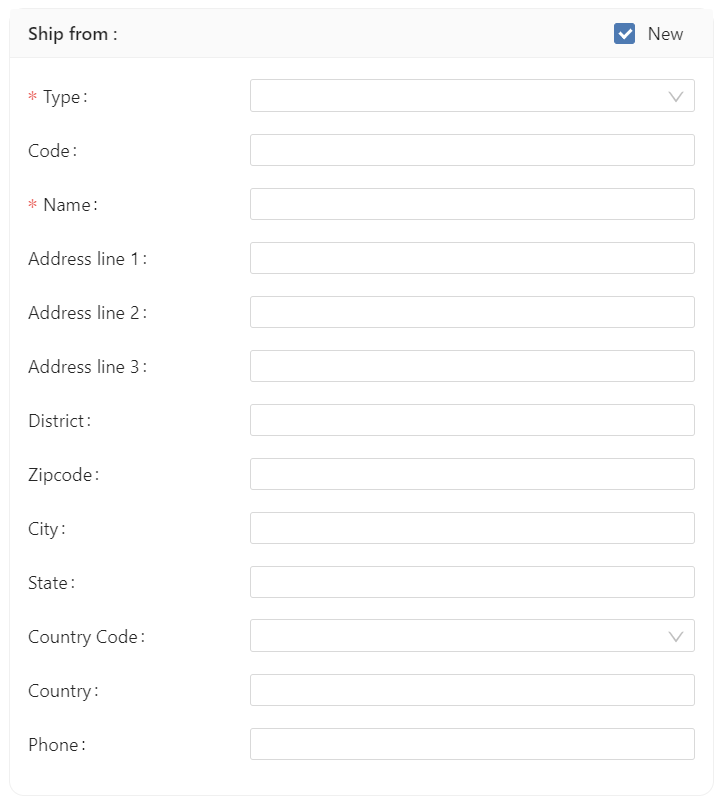
When creating or editing an order, Ship From, Ship To and Bill To will be presented as small card where:
- you can select the connection type you want to select (default: Manufacturer for Ship To, Entity for Bill To)
- then select the connection itself

It is possible to create a new connection on the fly by ticking the New box:
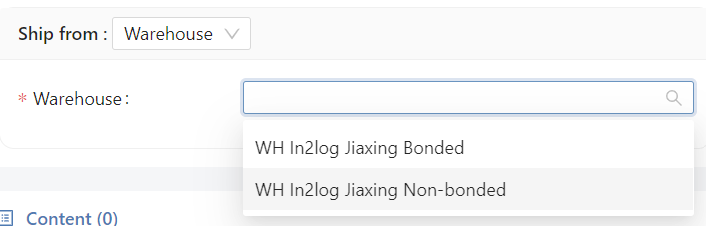
For Outbound Order, Ship From can also be a Warehouse. Warehouses cannot be created on the fly.
Reference codes
This field's list of entries is controlled by a reference code. Please refer to the given category for mode details.
Lines
Default template
| Field | Definition | Mandatory? | Display only? | Validation ? |
|---|---|---|---|---|
| # | Line number | Y | Y (Auto-generated by system) | |
| SKU | Code of the SKU to be served | Y | SKU master data | |
| Name | Name of the SKU to be served | |||
| Qty | Quantity to be served | Y | ||
| Qty shipped | Quantity really shipped | Y (Updated at each shipment, even partial) | ||
| Unit | Unit of Measure of quantity (PCS, BOX), if it's relevant to display. By default, all quantities are in pieces | |||
| Tracking # | Real tracking # used to ship the order, if unique for the line. Else, display "Multiple". Hyperlink to Shipping Units. | |||
| Shipment # | Shipment # used to ship the order, if unique for the line. Else, display "Multiple". Hyperlink to Shipments. |
Additional fields
| Field | Definition | Mandatory? | Display only? | Validation ? |
|---|---|---|---|---|
| Supplier SKU | Supplier SKU code, if supplier has its own nomenclature | Y (data from SKU master | ||
| Qty per box | Quantity for a full box | Y (data from SKU master | ||
| Qty booked | For import-export, quantity booked for this order (meaning a Booking has been created for this order line) | |||
| Owner | Owner for which the quantity is to be served. | |||
| Required lot or S/N [1] | Required lot number or S/N expected, meaning that the lot or S/N has been forced | |||
| Minimum expiry date [1] | Expiry date expected to be received, or, if the line is already received, real expiry date received | |||
| MFD | Manufacturing date expected | |||
| Unit amount | Unit price for 1 piece of this SKU | |||
| Line weight | Weight of the whole order line | |||
| Weight unit | Unit Of Measure for weight | |||
| Line volume | Volume of the whole order line | |||
| Volume unit | Unit Of Measure for weight | |||
| Nb of boxes | Number of boxes for this order | |||
| External variant Id | 3rd party system variant ID, for example for Market places |
About lot or S/N management
Order line just records a required lot (or S/N) and/or minimum expiry date, meaning this data can be seen as constraints about how to serve this order. The real lot (or S/N) and expiry date used for shipping can be found in Shipping Unit Lines.
Tabs
Content
Order lines are displayed in Contents tab. To see Hubble logic about shipped quantities, please follow this link
Events
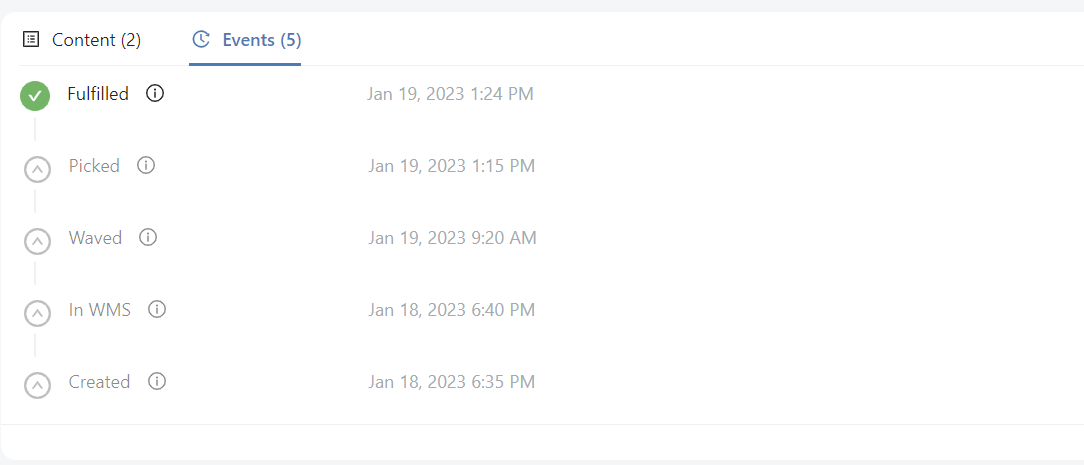
Events helps the user to trace any status change for this Outbound order.
Documents
Inbound Order is eligible for documents.
Actions
Create and edit
You can use form to create or edit a single OUtbound Order. See form for more details about using forms.
- Create is accessible from list view: an empty form will appear to create a new Outbound Order. Outbound order # must be unique: if already used, an error message will be displayed after submit
- Edit is accessible from the detailed view of a given order: a form with current data will appear, and data can be changed if the field has been set as read-only in the template.
If Hubble is linked with a WMS, the order will be automatically resent to WMS after modification. See resend for more details
Mass upload
Outbound orders can be uploaded by Excel. See mass upload for the whole upload process.
Default template
The default template for upload of Outbound Orders is:
| Field | Level | Pivot column | Constraint | Excel column |
|---|---|---|---|---|
| Order Number | Header | Y | Mandatory | A |
| Warehouse | Header | Mandatory | B | |
| Customer code | Header | Y | Mandatory | C |
| SKU code | Line | Mandatory | D | |
| Quantity ordered | Line | Optional | E |
Example of upload with default template
For example, if the following file is uploaded:
| Column A | Column B | Column C | Column D | Column E | Good input? | |
|---|---|---|---|---|---|---|
| Row 1 | SO-001 | MYWAREHOUSE | MYCUSTOMER | SKUA | 100 | |
| Row 2 | SO-001 | MYWAREHOUSE | MYCUSTOMER | SKUB | 200 | |
| Row 3 | SO-001 | MYWAREHOUSE | MYCUSTOMER | SKUC | 500 | |
| Row 4 | SO-002 | MYWAREHOUSE | MYCUSTOMER | SKUD | 100 | |
| Row 5 | SO-002 | MYOTHERWAREHOUSE | MYCUSTOMER | SKUE | 200 | |
| Row 6 | SO-003 | MYWAREHOUSE | MYCUSTOMER | SKUF | 100 | |
| Row 7 | SO-003 | MYWAREHOUSE | MYCUSTOMER | SKUF | 200 | |
| Row 8 | SO-001 | MYWAREHOUSE | MYCUSTOMER | SKUG | 500 |
Result:
- SO-001 will be successfully created with 3 lines
- SO-002 will be successfully created with 2 lines, but for MYWAREHOUSE: the warehouse declared on the second line will be ignored.
- SO-003 will be successfully created, but SKUF will be on 2 different lines
- A fourth line will be added to SO-001 even if the line is not following the 3 first lines