More actions
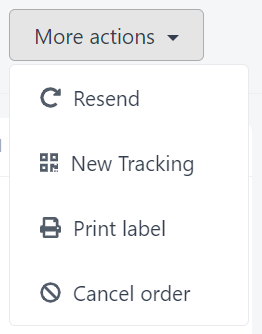
The following actions are accessible to Warehouse users:
- Resend: resend an order to WMS
- New tracking: request a new tracking number (case Automatic tracking assignment )
- Print label: request a new tracking number (case Automatic tracking assignment )
- Ship order: ship an order outside of WMS (quick shipment mode)
- Cancel: cancel an order
Resend
Button
To resend an order , go to More Actions -> Resend.
This option is only accessible if the order is Created or in WMS.
Process
Once you click on the button, the order will be resend to WMS. If successful, the above popup will be displayed on top of page:

Please contact you System Admin if you get the below error message:

New tracking
this option is only available for carriers were Hubble can automatically get a tracking umber. See Automatic tracking assignment
Button
To get a tracking number manually, or renew a new tracking number for an order , go to More Actions -> New tracking.
Access conditions:
- The carrier is linked to an API provider
- The order is not Fulfilled, Partial, Cancelled or Cancelling...
Effect:
If the API provider can successfully deliver the order and assign a tracking number, the new tracking will be automatically filled on the order by Hubble:
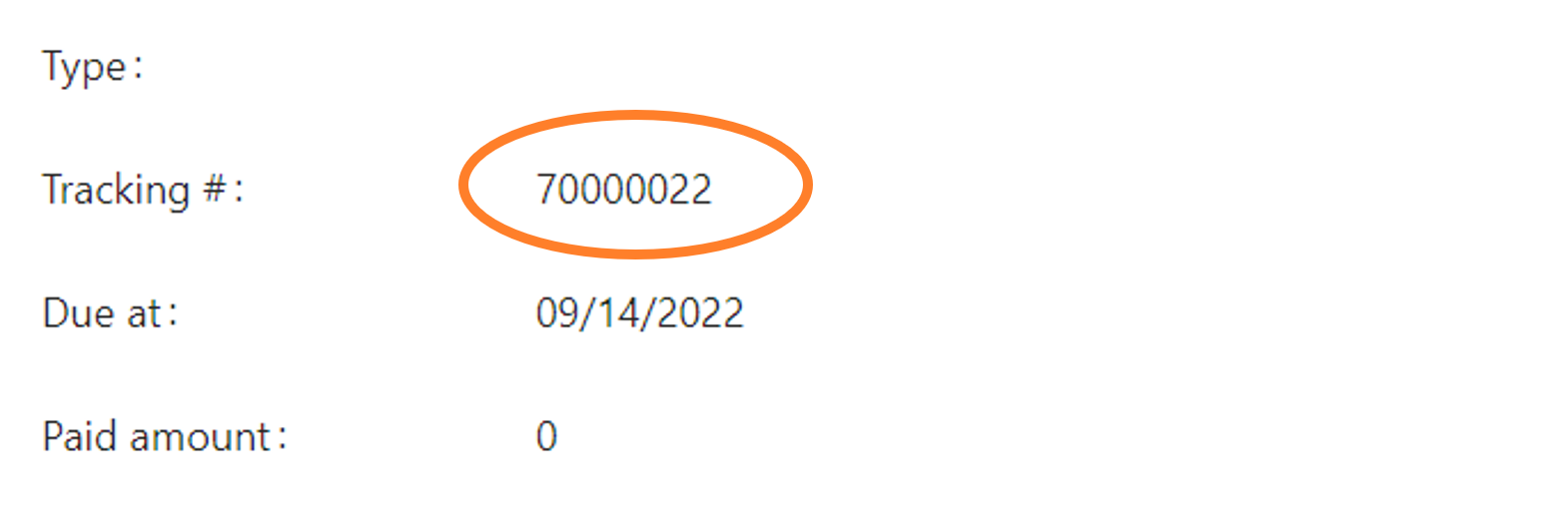
If the order has already a tracking number, the old one will be overwritten
Else, an error message will be displayed with the reason, and the tracking will be set with an error message:
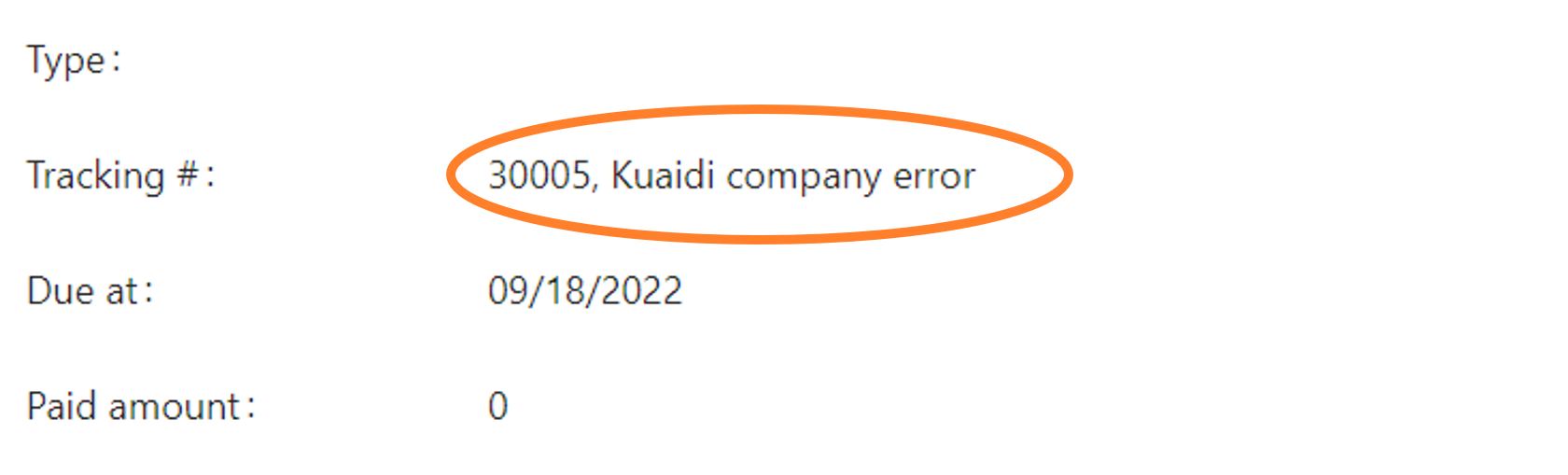
Depending on the error, you can either change the carrier or the delivery address, and retry requesting a tracking number. If the error is not clear enough, please ask your system admin.
Print label
this option is only available for carriers were Hubble can automatically get a tracking umber. See Automatic tracking assignment
Button
To print a label manually from Hubble, go to More Actions -> Print label.
Access conditions:
- The carrier is linked to an API provider
- The order is not Cancelled or Cancelling...
Effect:
Hubble will help to view or print the label depending on the API provider:
| API provider | Effect |
|---|---|
| Kuaid100 | Open the label in a new browser tab (image or PDF). The label would be then printed from browser |
| Cainiao | Push the printing data to x-print (Cainiao x-print tool should be installed on the local computer) |
Ship order
Button
To quickly ship an order from Hubble, go to More Actions -> Print label.
Quick shipment will ship the order in a virtual shipment and a virtual shipping unit.
It is possible to ship an order with more information from the Shipment screen
Access conditions:
- The warehouse is not linked to a WMS. This constraint will be ignored if the user has ADMIN role.
- The order status is Created
Form
After clicking the option, the below form is display at the bottom of the page:

Fields are prefilled with order line data (owner, lot, expiry date), meaning that the order is supposed to be shipped in full (quantity shipped = quantity ordered). But shipped quantities can be modified if the real quantities are lower than ordered. The quantities can be reset to 0 by clicking on the Clear button.
Validate shipment
Run reception
A confirm pop-up is displayed when clicking Validate button, warning the user that the action of shipment is not reversible:
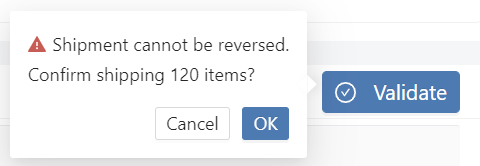
Success message
If the reception is successful, the below message is displayed at the top of the page:

For more details about shipment logic, please follow this link
Cancel
Button
To cancel an order , go to More Actions -> Cancel.
This option will be only accessible if the order is not Shipped, Partial, Cancelled or Cancelling....
Process
Hubble will either:
- directly cancel the order
- send a cancellation request to WMS
For more details about cancellation logic, please follow this link