Documents
It is possible to create or save documents linked to a specific elements
The elements that are eligible to documents in Hubble are:
- Inbound orders
- Outbound orders
- Shipments
- Shipping units
- Inventory (for a specific lot ot S/N for example)
Documents can be accessed from the content details of the element, in Documents tab:

In Hubble, there are 2 types of documents:
- Uploaded documents: any format of documents (images, pdf, Excel, ...) can be linked to the element, uploaded by one user and downloaded by another. For example, it can be used to support the below business scenarios:
- Upload documents that can be used for customs clearance for importing goods by the destination forwarder agent
- Upload pictures of proof of delivery signed by the recipient of a parcel
- ...
- On-demand documents: Hubble can generate Excel files from the element data, so that it could be sent by email to another party, printed, changed to PDF, ...
- Invoice for one order
- Packing list of a shipment
- ...
Uploaded documents
Any format of document can be uploaded in Hubble. The document will be saved in Hubble storage space.
Each document is linked to an element (an order, a shipping unit, ...), and can be uploaded against a specific document type.
Available document types are configurable in reference codes. If you don't have admin rights, please ask your system admin to create or change documents types for you.
Upload
Click on the Upload documents button to initiate upload:
The below pop-up appears:
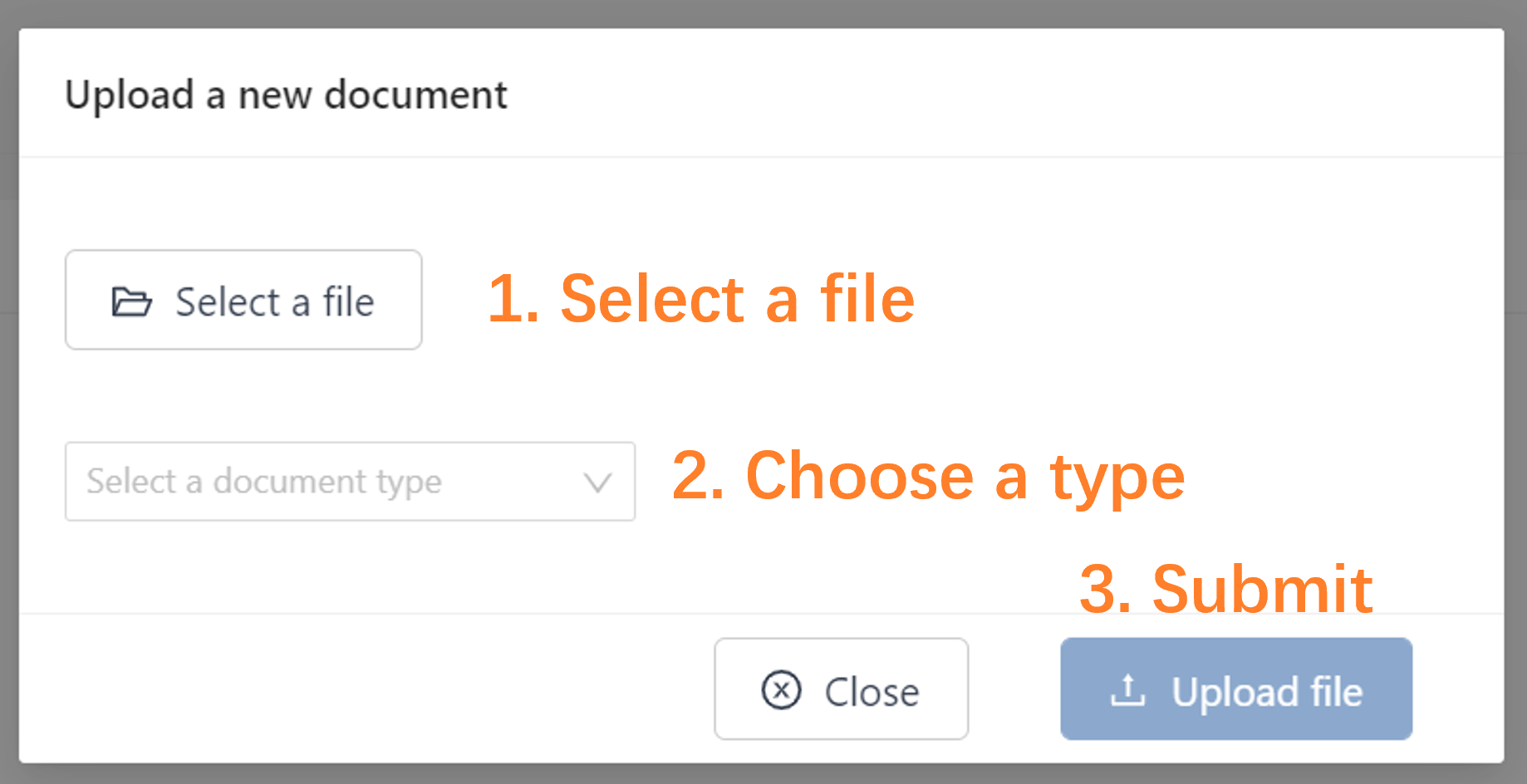
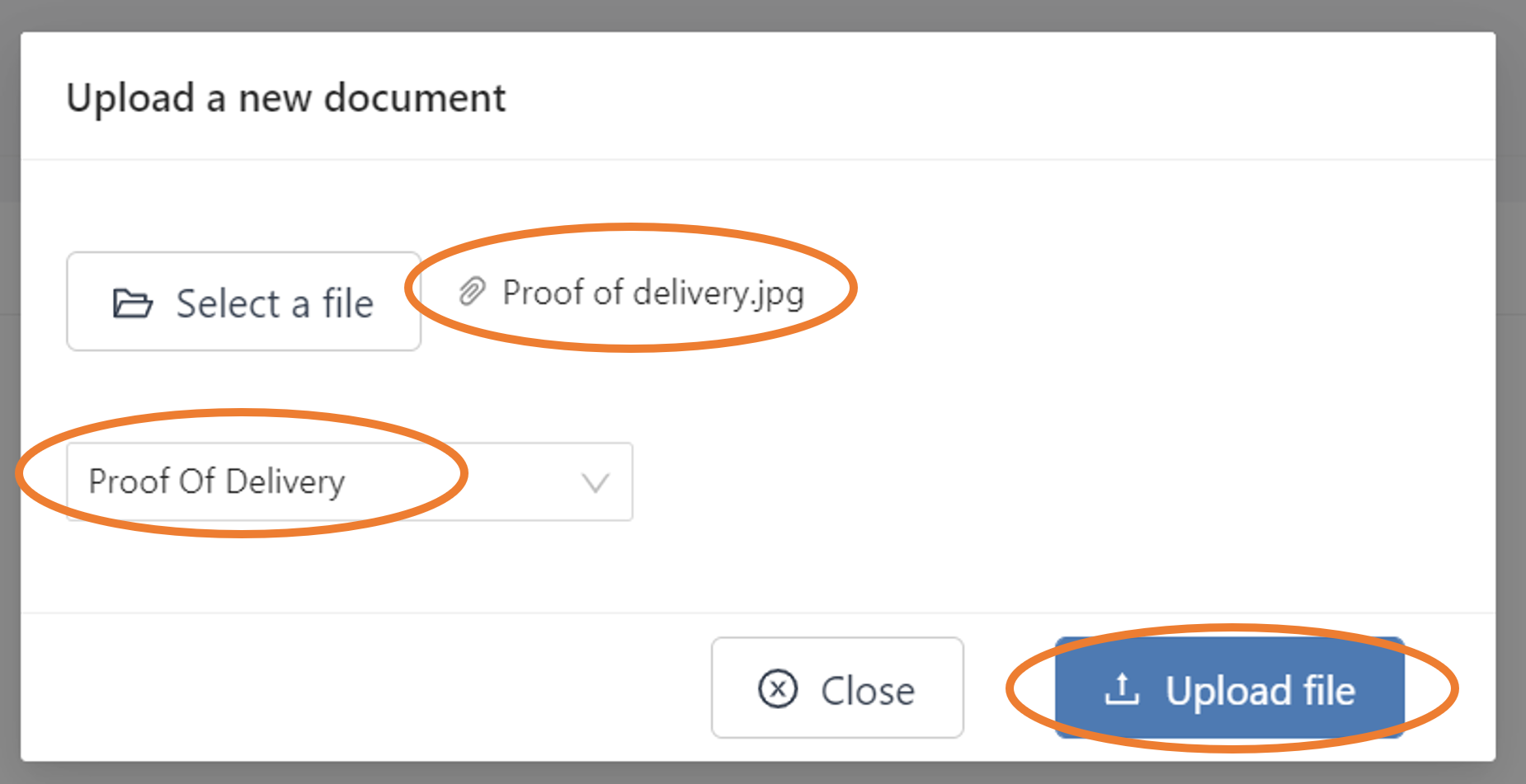
- Select a file: browse and select a file stored in your computer
- Choose a type: select a document type (type is mandatory)
- Choose a document type a file: Once step 1 and 2 are done, the Upload file button becomes available. Click on it to submit your upload.
If the upload is successful, the following message will be displayed:
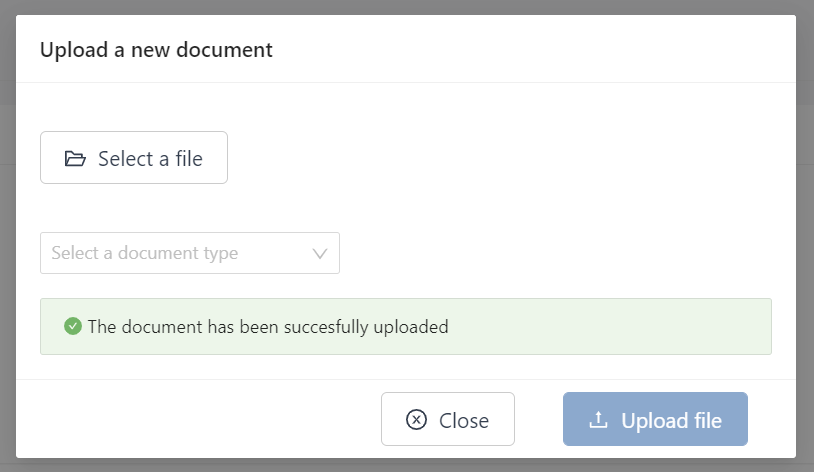
You can close the pop-up or upload another document. After close, the file(s) will be added to the document list:

Actions
You can download documents from your browser by clicking on the icon:

For PDF and images only, you can view documents in your browser by clicking on the icon:

You can delete documents by clicking on the icon:

On-demand documents
Hubble can generate Excel documents based on the element data. This document is not stored in Hubble, but generated on-demand by the user.
Documents that are generated on demand have value On demand in the column Updated at. They don't have Delete icon.
Definition
This documents are fully customizable. Documents on-demand generation is based on:
- A blank Excel template, with default layout: pictures, fonts, default data, cell data type, formulas...
- A mapping between element data and destination Excel cells. For example: order number in B2, ship to name in B3, ...
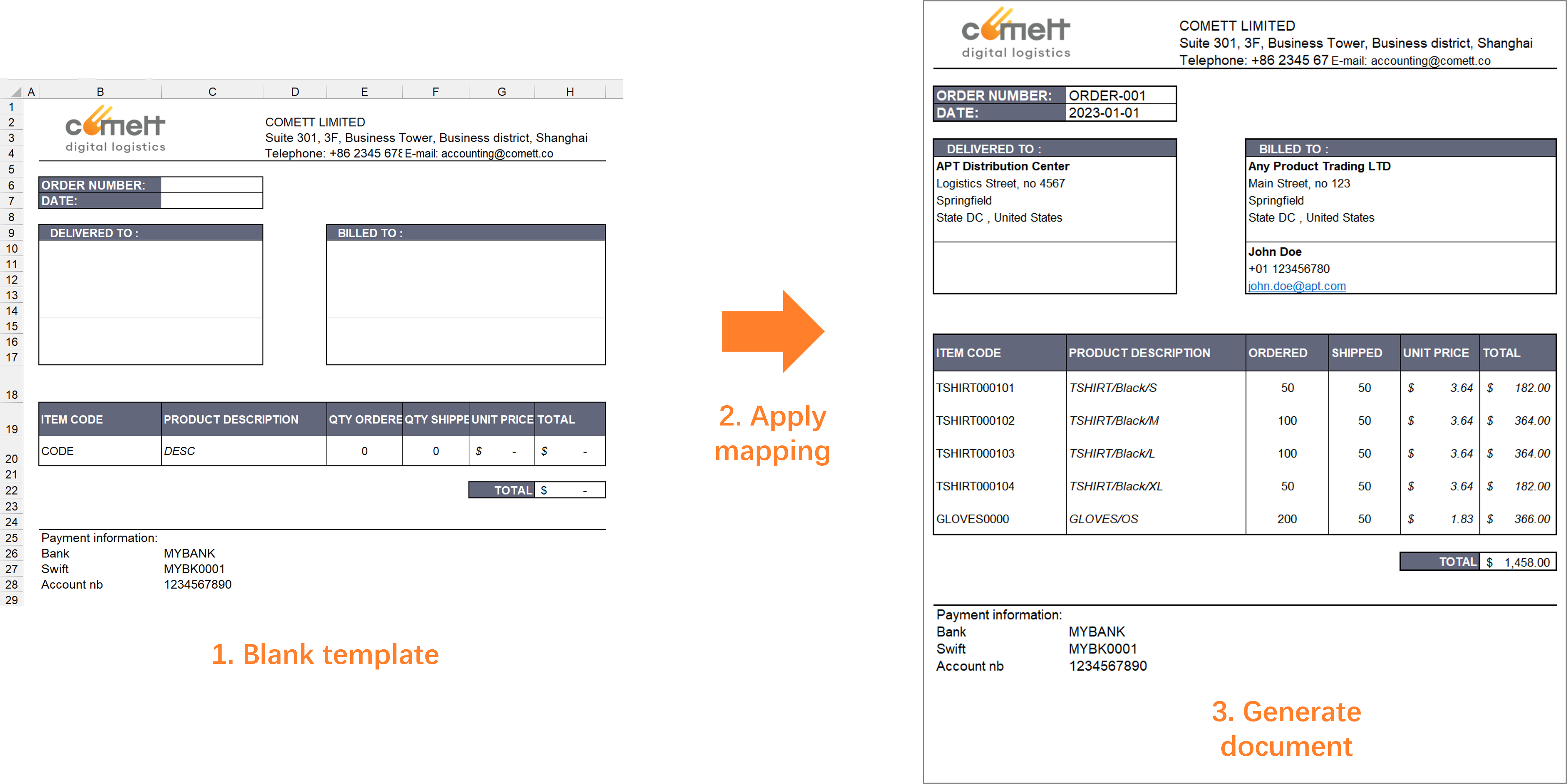
Excel templates can be also include tables, with the element's content: order lines, shipping unit lines, ...
If you don't have admin rights and no access to templates, please provide a sample Excel file to your system admin. He will configure the document for you.
Generate
To generate documents, click on the icon:
If the data is modified in Hubble, the document content will be also modified in the next download.