View and form
Discover first the key concepts and logics about Inbound Orders in Hubble.
View Inbound Orders
Order list
Inbound orders can be accessed through the menu Inbound orders > All orders in FLOWS section:
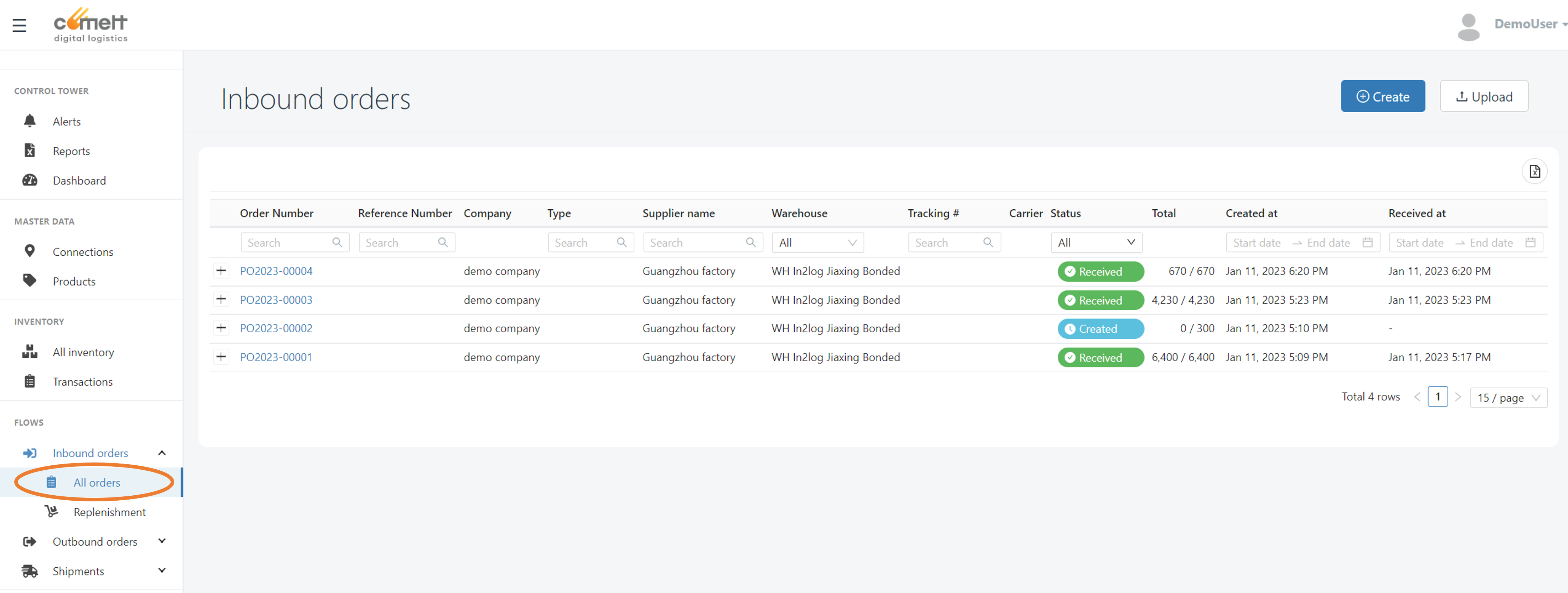
Click on an order number to view order detail.
Inbound order details
Page Layout
Inbound order page is organized in 2 cards:
- Order header information
- Tabs:
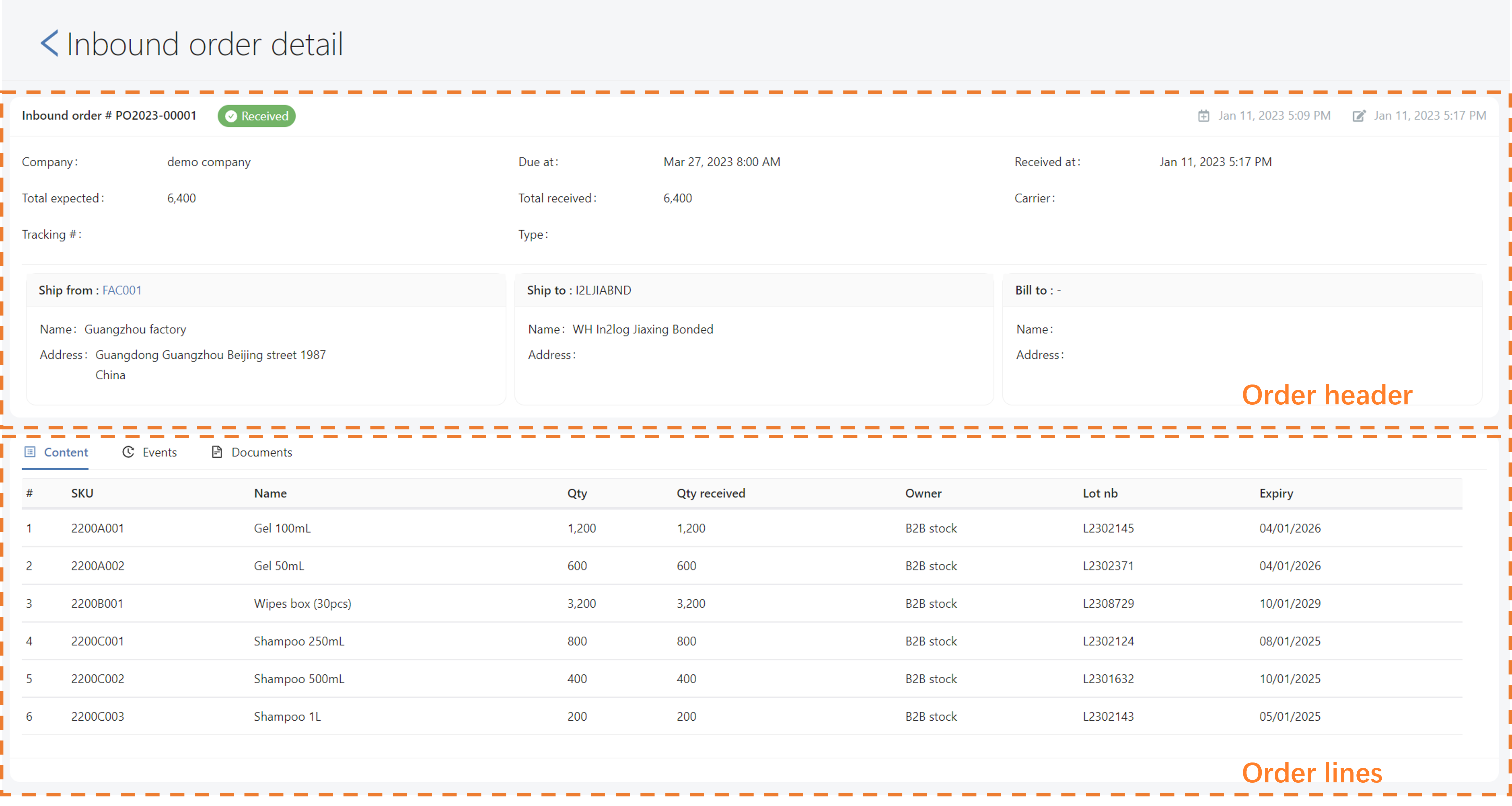
Fields
This page can be controlled with templates. If no custom template is defined, the default template will be used, and additional fields won't be displayed.
In the following fields list, Mandatory, Display Only, or Validation cannot be modified, even with a custom template.
Header
| Field | Definition | Mandatory? (even with custom template) | Display only? (even with custom template) |
|---|---|---|---|
| ** | DEFAULT TEMPLATE | ||
| Inbound order # (in card header) | Main order number. This is number must be unique. | Order number will be auto-generated if not input. | Order number cannot be edited |
| Company | Company linked to this order | Y | Y (Use company selector to create inbound on the right company. Company cannot be modified after creation) |
| Due at | Date and time when the order is supposed to arrive in warehouse | ||
| Received at | Reception date and time, if the order is Received or Partially received | Y (Updated at each reception, even partial) | |
| Total expected | Total quantity ordered on this inbound | Y (Calculated by Hubble from as a sum from lines) | |
| Total received | Total quantity received on this inbound (0 if not received) | Y (Calculated by Hubble from as a sum from lines) | |
| Ship from | Shipper of this inbound order (card displaying connection code, name and address) | Y | |
| Ship to | Receiver of this inbound order (card displaying connection code, name and address) | Y | |
| Bill to | Entity that should be billed for this order, if different from receiver (card displaying connection code, name and address) | Y | |
| ** | ADDITIONAL FIELDS | ||
| Reference | Secondary order number, for example supplier PO#, original order number for a return, ... | ||
| Origin | Which system created the order: API, EDI, ... | Y (Automatically filled by system) | |
| Issued at | Date and time when the order has been created in ERP and/or issued to the supplier (case when created time in Hubble is not relevant) | ||
| Entry | 3rd party system internal ID (for example, ERP internal number), used for EDI purpose only | Y | |
| Total amount | Total amount for this order | Y (Calculated by Hubble from as a sum from lines) | |
| Carrier | Carrier used for this inbound | ||
| Tracking # | Tracking # used for this inbound, specially for e-commerce returns | ||
| Type | Inbound order type (free field) |
Lines
| Field | Definition | Mandatory? (even with custom template) | Display only? (even with custom template) |
|---|---|---|---|
| ** | DEFAULT TEMPLATE | ||
| # | Line number | Y | Y (Auto-generated by system) |
| SKU | Code of the SKU to be received | Y | |
| Name | Name of the SKU to be received | ||
| Qty | Quantity to be received | Y | |
| Qty received | Quantity really received | Y (Updated at each reception, even partial) | |
| Owner | Owner for which the quantity is to be received. Will be changed to real owner received after reception | ||
| Reception# | Reception number from external WMS | ||
| Received at | Date and time when the line has been received (useful if multiple receptions) | ||
| ** | ADDITIONAL FIELDS | ||
| Supplier SKU | Supplier SKU code, if supplier has its own nomenclature | ||
| Unit | Unit of Measure of quantity (PCS, BOX), if it's relevant to display. By default, all quantities are in pieces | ||
| Lot or S/N | Lot number or S/N expected to be received, or, if the line is already received, real lot or S/N received | ||
| Expiry date | Expiry date expected to be received, or, if the line is already received, real expiry date received | ||
| Manufacturing date | Manufacturing date expected to be received, or, if the line is already received, real manufacturing date received |
Tabs
Content
Order lines are displayed in Contents tab. To see Hubble logic about received quantities, please follow this link

Events
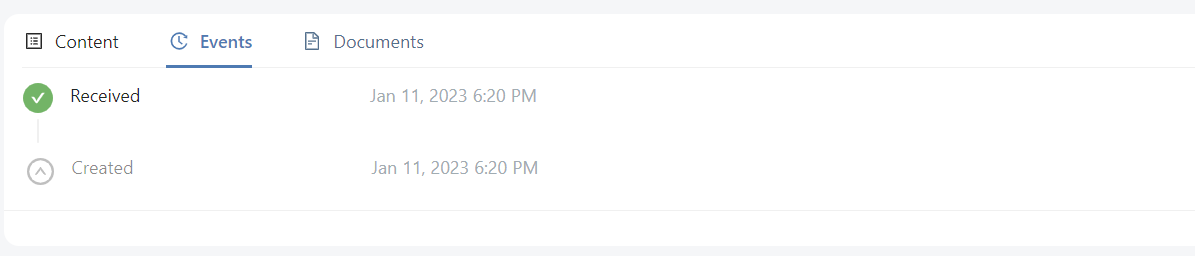
Events helps the user to trace any status change for this Inbound order.
Documents
Inbound Order is eligible for documents.
Actions
Create and edit
You can use form to create or edit a single Inbound Order. See form for more details about using forms.
- Create is accessible from list view: an empty form will appear to create a new Inbound Order. Inbound order # must be unique: if already used, an error message will be displayed after submit
- Edit is accessible from the detailed view of a given order: a form with current data will appear, and data can be changed if the field has been set as read-only in the template.
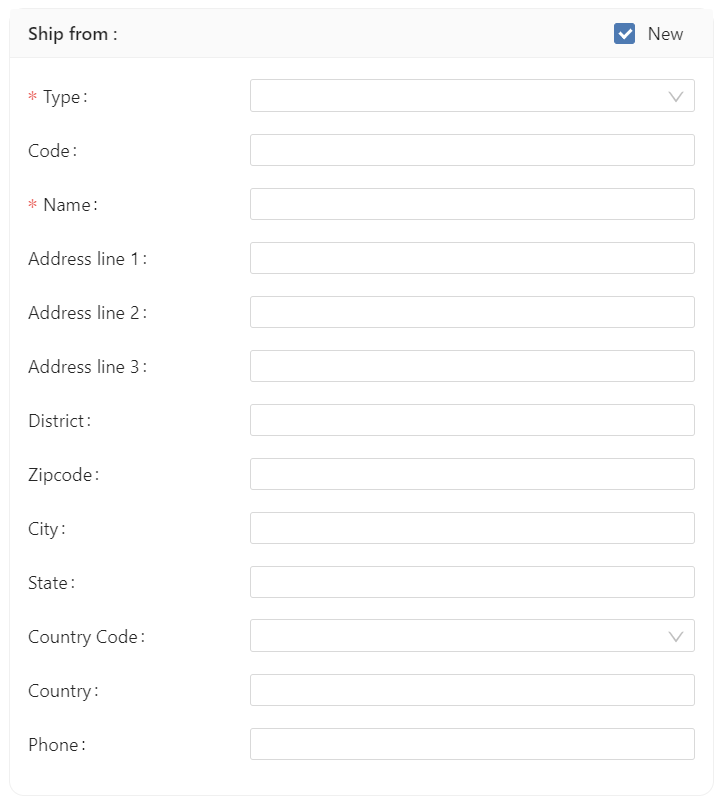
When creating or editing an order, Ship From and Bill To will be presented as small card where:
- you can select the connection type you want to select (default: Manufacturer for Ship To, Entity for Bill To)
- then select the connection itself

It is possible to create a new connection on the fly by ticking the New box:
For Inbound Order, Ship To can only be a Warehouse:

If Hubble is linked with a WMS, the order will be automatically resent to WMS after modification. See resend for more details
Mass upload
Inbound orders can be uploaded by Excel. See mass upload for the whole upload process.
Default template
The default template for upload of Inbound Orders is:
| Field | Level | Pivot column | Constraint | Excel column |
|---|---|---|---|---|
| Order Number | Header | Y | Mandatory | A |
| Warehouse | Header | Mandatory | B | |
| Supplier code | Header | Y | Mandatory | C |
| SKU code | Line | Mandatory | D | |
| Quantity ordered | Line | Optional | E |
Example of upload with default template
For example, if the following file is uploaded:
| Column A | Column B | Column C | Column D | Column E | Good input? | |
|---|---|---|---|---|---|---|
| Row 1 | PO-001 | MYWAREHOUSE | MYSUPPLIER | SKUA | 100 | |
| Row 2 | PO-001 | MYWAREHOUSE | MYSUPPLIER | SKUB | 200 | |
| Row 3 | PO-001 | MYWAREHOUSE | MYSUPPLIER | SKUC | 500 | |
| Row 4 | PO-002 | MYWAREHOUSE | MYSUPPLIER | SKUD | 100 | |
| Row 5 | PO-002 | MYOTHERWAREHOUSE | MYSUPPLIER | SKUE | 200 | |
| Row 6 | PO-003 | MYWAREHOUSE | MYSUPPLIER | SKUF | 100 | |
| Row 7 | PO-003 | MYWAREHOUSE | MYSUPPLIER | SKUF | 200 | |
| Row 8 | PO-001 | MYWAREHOUSE | MYSUPPLIER | SKUG | 500 |
Result:
- PO-001 will be successfully created with 3 lines
- PO-002 will be successfully created with 2 lines, but for MYWAREHOUSE: the warehouse declared on the second line will be ignored.
- PO-003 will be successfully created, but SKUF will be on 2 different lines
- A fourth line will be added to PO-001 even if the line is not following the 3 first lines