Inventory view
Discover first the basic concepts about inventory management in Hubble.
In the current documentation, we will use either Inventory either Stocks to describe the same concept.
Definition
Inventory is tracked by 5 dimensions in Hubble:
| Type | Definition |
|---|---|
| SKU | Basic unit to track stock, representing a similar version of a commercial product |
| Warehouse | Represents a place where is stored the physical stock |
| Owner | Reason to dedicate stock for a specific sales channel, or a business unit who owns the stock |
| Lot or S/N | If the stock is tracked by production lot or production serial numbers |
| Expiry date | If the stock has an expiry or best before date |
Inventory is tracked in 4 positions in Hubble:
| Type | Definition |
|---|---|
| Incoming | An inbound order is created, but the stock is not received yet. |
| Available | Stock is available for sales |
| Allocated | An outbound order is created and the stock is reserved for such order |
| Blocked | The stock is blocked for some reason (damaged, expired), hence not available for sales |
Inventory list
Detailed inventory
2 scenarios are possible:
- If Hubble is synchronized with external systems, such as WMS, ERP, ..., stock updates might be pseudo real-time, meaning that the stock is updated every 5 or 10 minutes. It means that every transactions that would update stocks (order creation, shipments, ...) are created from messages exchanged at a given frequency between different systems and Hubble.
- If Hubble is used as standalone, or with API only, stock could be updated in real-time
In case of doubt, please contact your system administrator for clarifications.
Inventory list can be accessed through the menu All inventory in INVENTORY section:
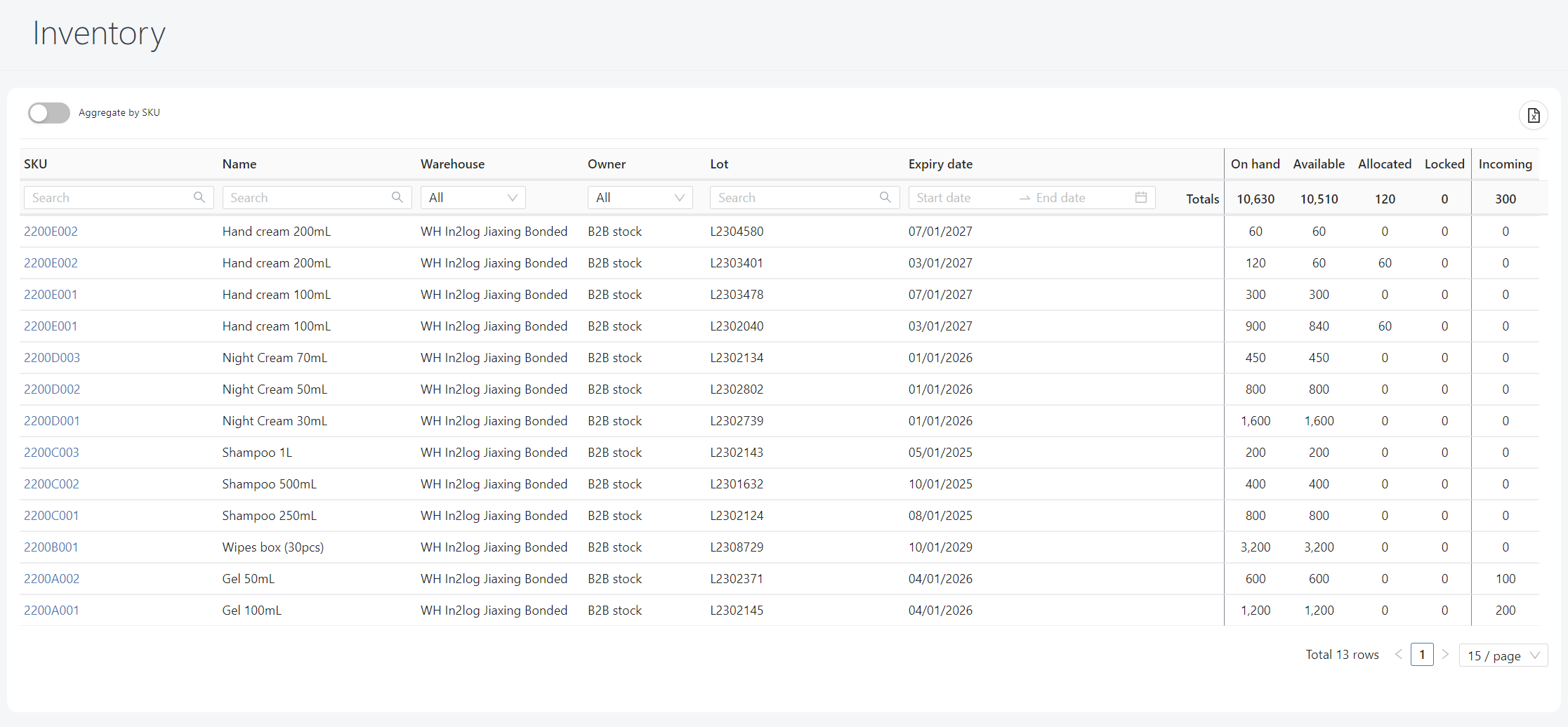
The default view is the detailed view, meaning that each row represents the lowest granularity recorded in Hubble: the stock is given by SKU, warehouse, owner, lot or S/N, expiry date.
Click on an SKU code to view inventory detail.
If the SKU is managed by lot or by S/N, it is possible that the Available stock becomes negative, as the below situation.
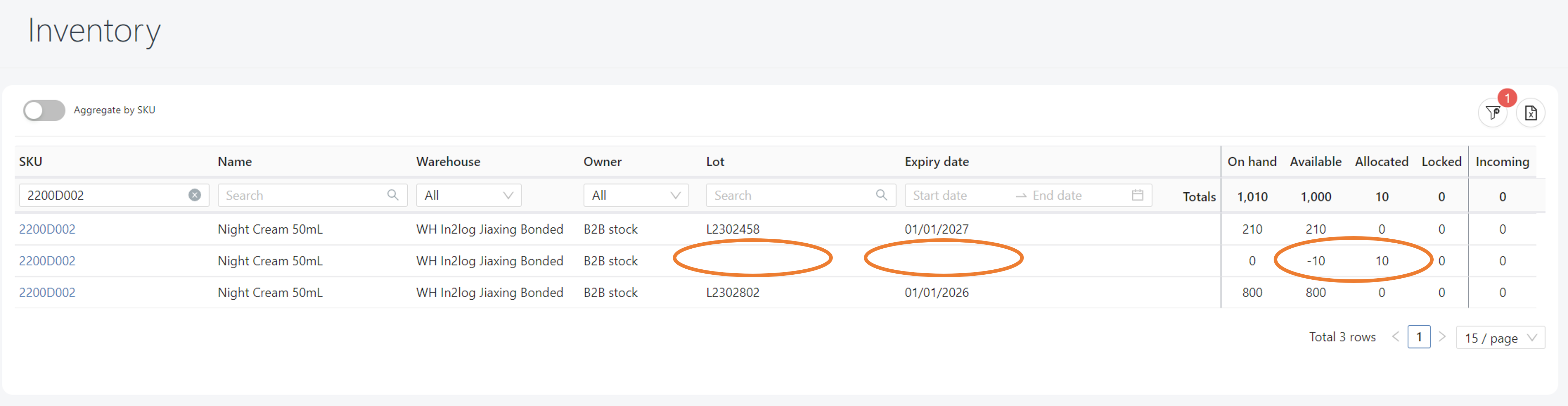
This happens when the order is not requesting any lot (free service): Hubble doesn't define which lot to serve, and let warehouse (WMS, Warehouse app, ...) to define the lot that will be used to serve this order. Therefore, allocation is done on a stock line where lot and expiry date are blanked.
When the order will be shipped with a specific lot, the stock will be adjusted properly on the right lot.
This allow to have the proper sum of quantities when the order is in progress: in our case, Available is 1000 and allocated is 10.

Aggregate inventory by SKU
If the view is aggregated by SKU, the Excel extraction will be as well aggregated by SKU.
You can change to aggregated view by using below switch:

In that view, the stock will be summed by SKU:
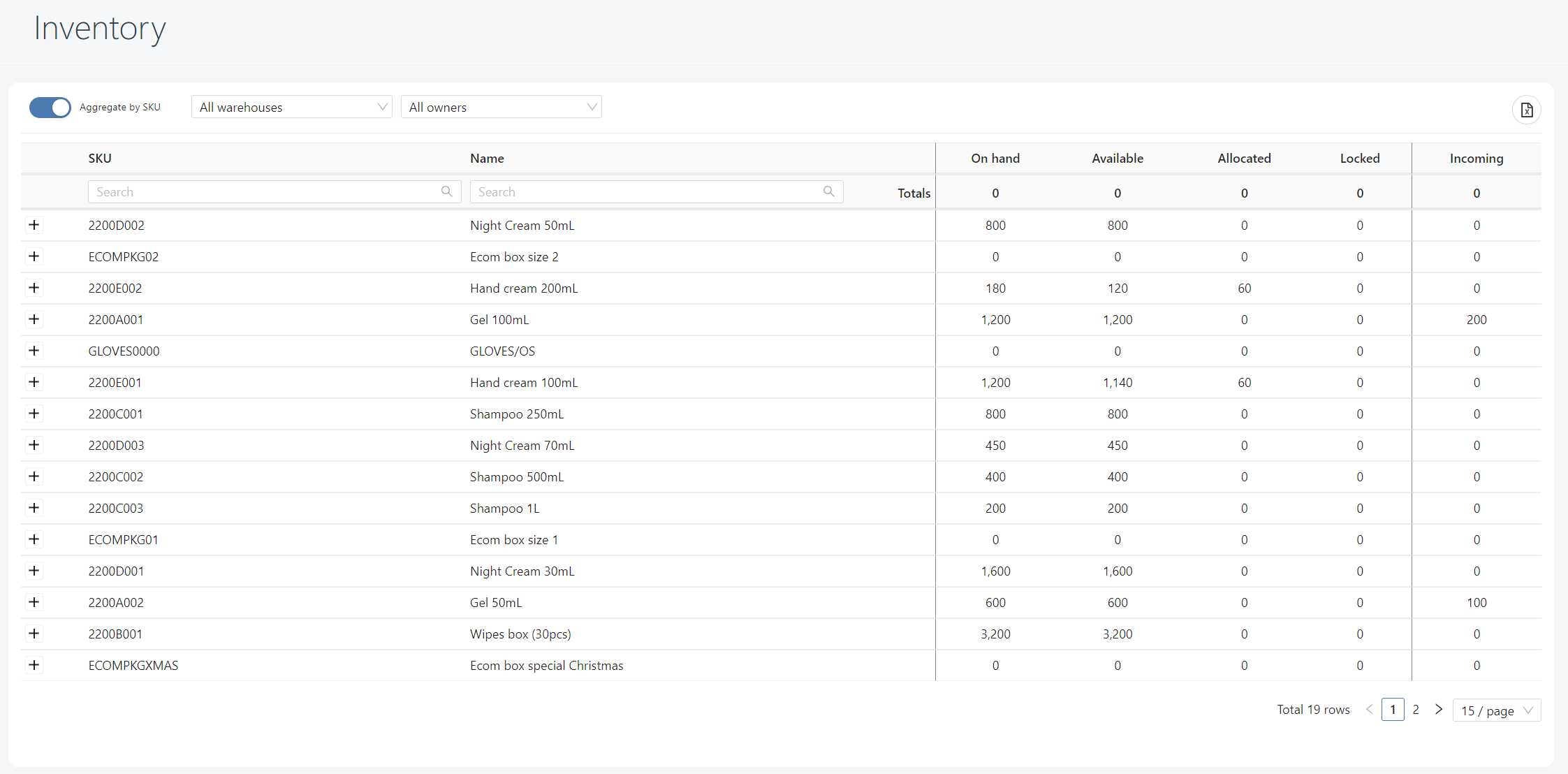
If the company has several warehouses or several owners, it is still possible to filter stock by these 2 dimensions:

It is possible to display every stock line by clicking on the Plus icon:

If the company has only one stock line per SKU, this feature won't be available. This would happen if all requirements below are met:
- the company has only one warehouse or the user has access to only one warehouse
- the company don't use owner or has only one owner in this warehouse
- the company's doesn't track stock by lot or S/N in this warehouse
- the company doesn't have products with expiry dates in this warehouse
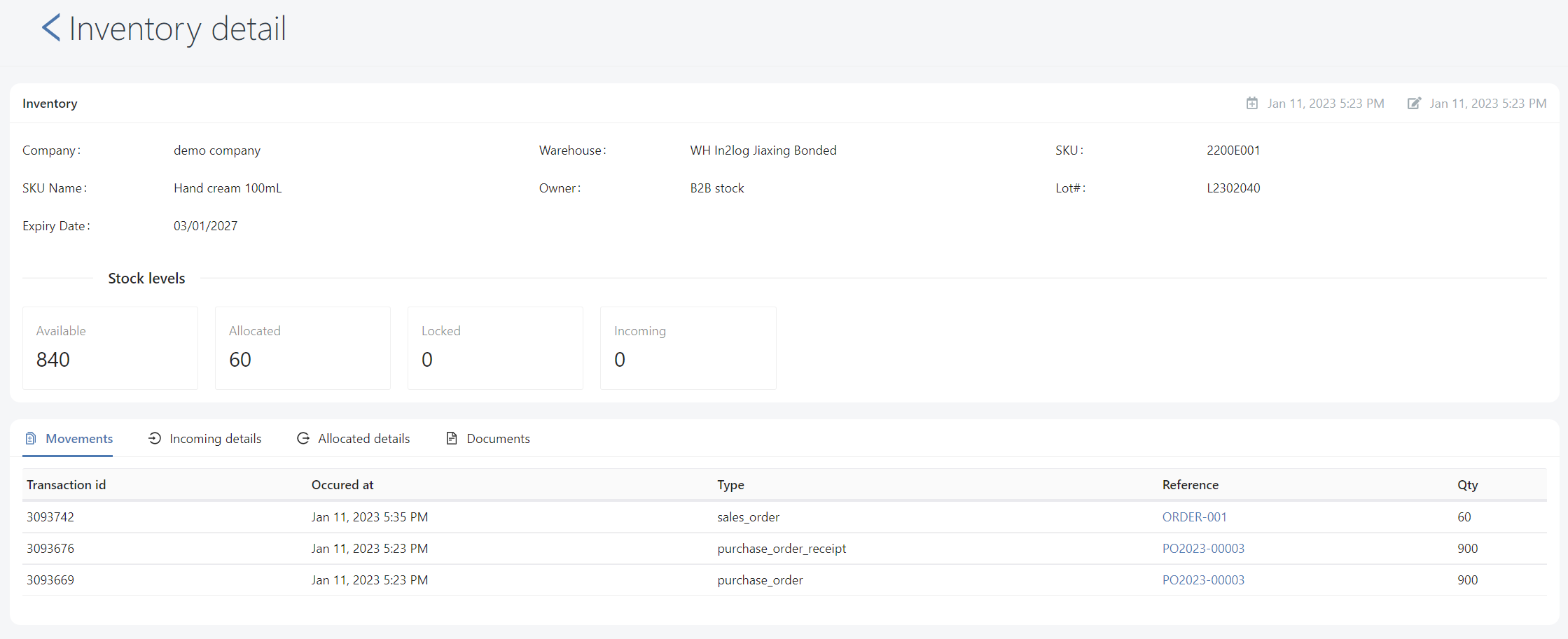
Inventory detail
Inventory page is organized in 2 cards:
- Stock line information
- Details:
- Movements: list of all Inventory Transactions that occurred for this stock line
- Incoming details: list of all unreceived inbound orders that matches Incoming quantity
- Allocated details: list of all unshipped outbound orders that matches Allocated quantity
- Documents: list of documents relative to this stock line