Connections
Definition
Connections represents a node of the Supply-Chain and can be an origin or a destination of an order.
In Hubble, a connection could be of several types:
| Type | Definition |
|---|---|
| Manufacturer | A place where stock is produced |
| Customer | B2B customer : distributor, wholesaler, store, ... |
| Marketplace | An individual consumer (B2C) |
| Warehouse | A place where stock is stored |
| Entity | A company headquarters (used for billing) |
| Forwarder | A company in charge of forwarding / transportation arrangement |
For example, in the below simple Supply-Chain, we have 3 nodes:
Therefore 3 connections will be created in Hubble
- My factory is a Manufacturer
- My warehouse is a Warehouse
- My distributor is a Customer
Each connection is composed of:
- General information: code, name, type
- An address
- One or several contacts
Connection type is just an information and has no impact on Hubble behavior (except for specific extraction to WMS). Marketplace is supposed to be unique for a given order.
View connections
Connections can be accessed through the menu Connections in MASTER DATA section:
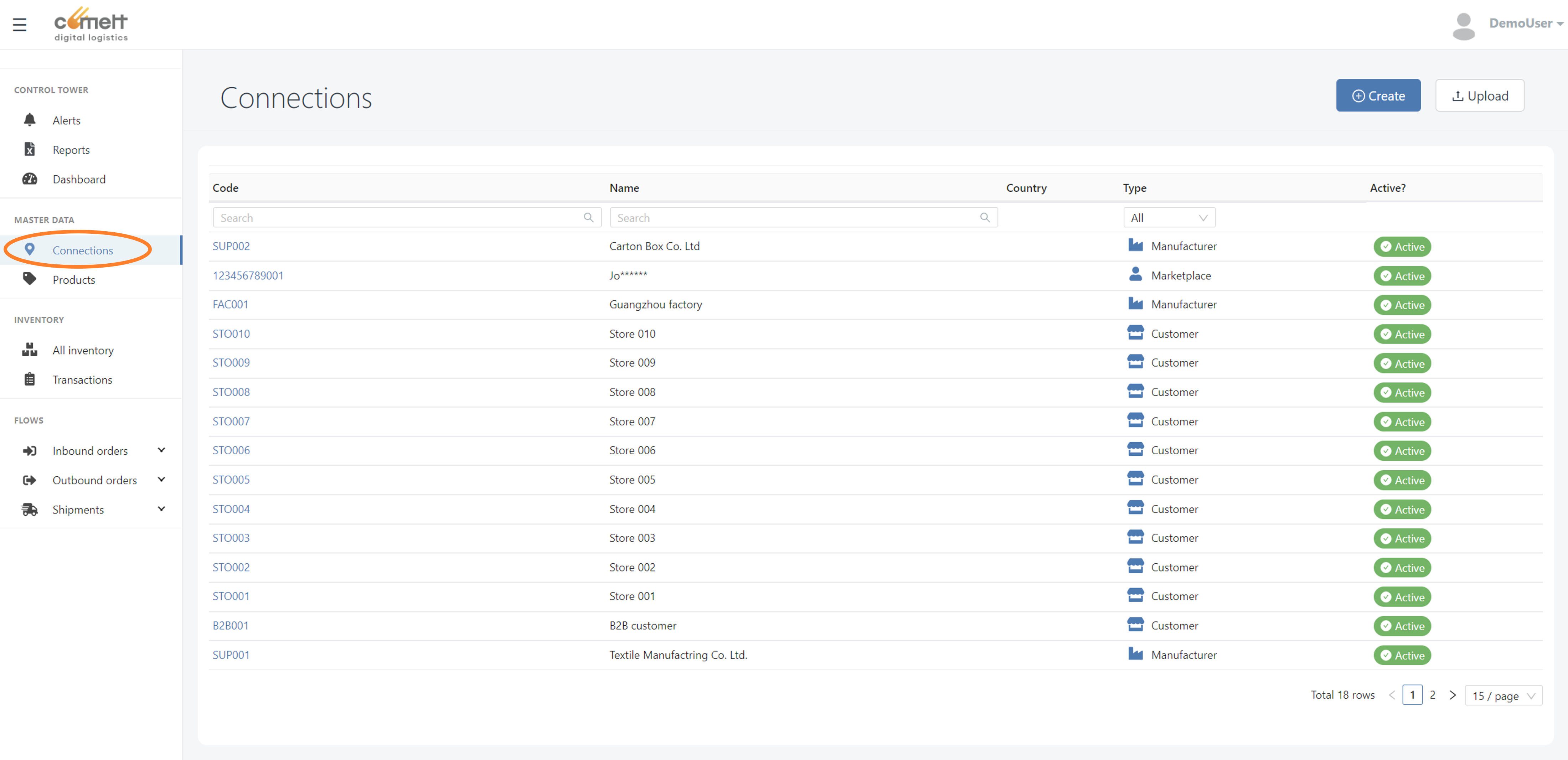
Click on a connection code to view connection detail.
Page Layout
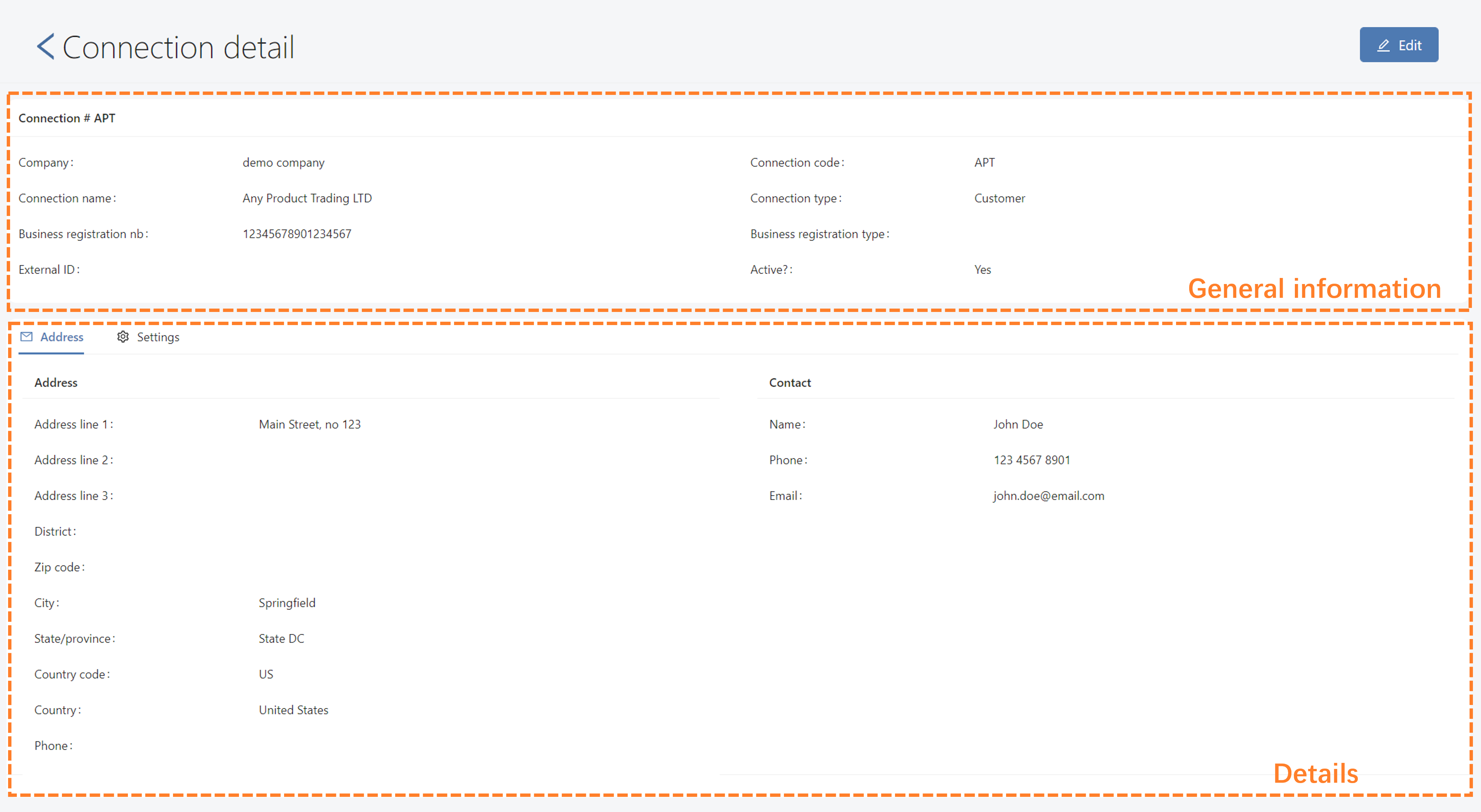
Connection page is organized in 2 cards:
- General information
- Details:
- Address tab: Shipping address & main contact
- Settings tab: Settings to get specific behavior for this connection
Fields
General information
| Field | Definition | Mandatory? |
|---|---|---|
| Code | Main code for this connection. It should be unique for the whole data set | Y |
| Name | Name of the connection | Y |
| Active | If untick, the connection is not available for selection in orders: the data is just kept for history purpose | |
| Type | Type of the connection, see above | |
| Business registration nb | Registration number, to be displayed on invoices | |
| Business registration type | Registration type, to be displayed on invoices | |
| External ID | Secondary identifier, for communication with third party systems (ex: Cargowise) |
Address
Address can be used as
- shipping address for warehouse operations (for orders to B2B customers, B2C customers, )
- address on documents: packing lists, invoices, ...
| Field | Definition | Mandatory? |
|---|---|---|
| Address line 1 | First line of address | |
| Address line 2 | Second line of address | |
| Address line 3 | Third line of address | |
| District | If the city is organized in districts | |
| Zip code | Postal zip code | |
| City | City | |
| State/province | State or Province (ex: California, 广东省,...) | |
| Country code | Country code with ISO 3166-2 standard | |
| Country name | Country name | |
| Phone | Fixed phone to reach the location |
For Marketplace only, a field Shipping address is available. This field is the shipping address used for express delivery, in particular for connection with kuaidi100.
In this field, the shipping address is given in 1 single value with the country's way of displaying orders. For example, in China, the standard is Province City District Address (广东省 深圳市 南山区 广东路888号)
This field is automatically filled by Hubble when the order is coming from Qimen, but it should be managed by external systems if the order is coming from other channels. If needed, it is possible to change it and request a new express tracking nb and label.
Contact
Contact can be used for display in documents.
| Field | Definition | Mandatory? |
|---|---|---|
| Name | Contact name | |
| Phone | Contact phone | |
| Contact email address |
Settings
| Field | Definition | Mandatory? |
|---|---|---|
| Release threshold (cbm) | Threshold to automatically release a Hold order | |
| Preferred currency | Currency used for invoicing this customer, to be displayed in invoices | |
| Invoiced with retail price? | If yes, product retail price will be used on invoice. If no, wholesale price will be used. |
Create and edit connections
Role userForm
You can use form to create or edit a single Connection. See form for more details about form usage.
- Create is accessible from list view: an empty form will appear to create a new connection. Connection code must be unique: if already used, an error message will be displayed after submit
- Edit is accessible from the detailed view of a given connection: a form with current data will appear
Mass upload
Connections can be uploaded by Excel. See mass upload for the whole upload process.
Default template
The default template for upload of connections is:
| Field | Level | Pivot column | Constraint | Excel column |
|---|---|---|---|---|
| Code | Product | Y | Mandatory | A |
| Name | Product | Y | Mandatory | B |
| Type | Product | Y | Mandatory, and should be one of the 6 allowed connection types | C |
Example of upload with default template
For example, if the following file is uploaded:
| Column A | Column B | Column C | Good input? | |||
|---|---|---|---|---|---|---|
| Row 1 | STORE01 | Store 1 | Customer | |||
| Row 2 | STORE02 | Store 2 | ||||
| Row 3 | STORE01 | Store 1 | Customer |
- Store 1 will be created successfully
- Store 2 will be not be created since Type is mandatory
- Last line won't be created since Store 1 is duplicated